Zerodha
How to export your Zerodha tradebook (and turn it into a journal)
Updated 31 July 2026
Zerodha's Console gives you a tradebook every fill, in order. It is not a journal: there is no P&L per trade, no R-multiple, no note about why you took it. Turning one into the other takes about two minutes, and this is the whole process.
Download the tradebook from Console
- 1.Sign in to console.zerodha.com.
- 2.Open Reports → Tradebook.
- 3.Pick the segment Equity for delivery and intraday, F&O for futures and options. They download separately.
- 4.Set the date range. Console limits how far back one export can reach, so pull a quarter at a time for a full year.
- 5.Click the download icon and choose CSV.
Export the tradebook, not the P&L statement. The P&L report is already netted per symbol, so the individual entries and exits the thing a journal is built on have been thrown away.
What's actually in the file
A Console tradebook has one row per fill, with these columns:
symbol, isin, trade_date, exchange, segment, series, trade_type,
auction, quantity, price, trade_id, order_id, order_execution_time
The three that matter for importing are trade_type (buy or sell), quantity and price. A single trade you'd describe as "bought 50 RELIANCE, sold them in the afternoon" appears here as two separate rows.
Import it
- 1.Open Journal and choose the account the trades belong to.
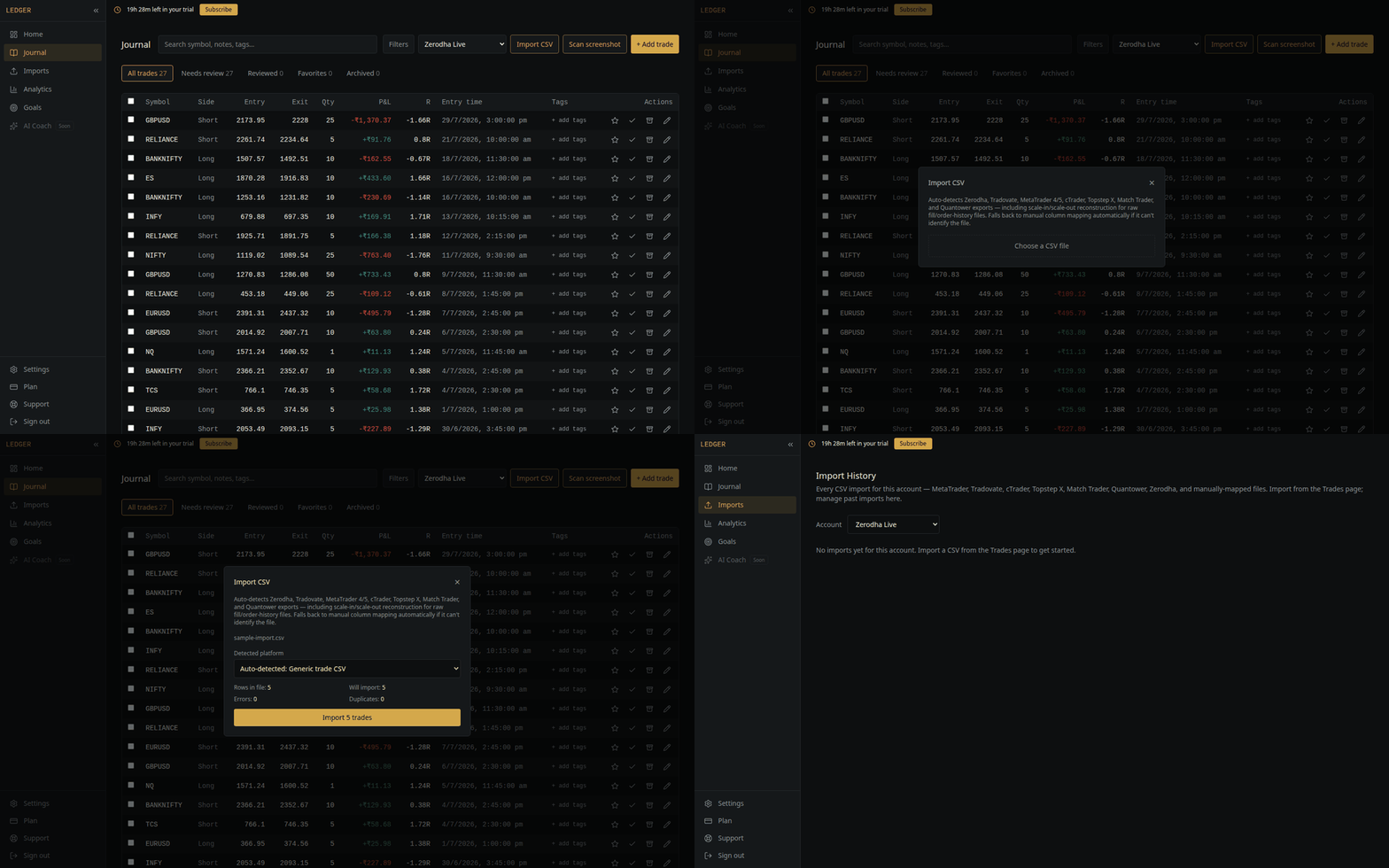
- 2.Click Import CSV and select the file you downloaded.
- 3.The format is recognised automatically you should see "Zerodha Console Tradebook" along with how many trades will be created.
- 4.Check the preview, then confirm.
How fills become trades
The importer matches your buys against your sells per symbol, in order, and produces one round-trip trade per matched pair. Four fills across two symbols become two trades with an entry price, an exit price, and the P&L between them.
Scale-ins and scale-outs are handled the same way: three partial exits against one entry are matched down in order rather than being dropped or double-counted.
A position still open at the end of the file has no matching exit, so it imports as an open trade with no P&L yet. Import again after you close it and the exit is filled in.
Importing more than once
Console exports overlap a quarterly pull will repeat trades you already have. Duplicates are detected and skipped by default, so re-importing an overlapping file will not double-count. Each import is also recorded as a batch you can delete in one action if something looks wrong.
What to do once it's in
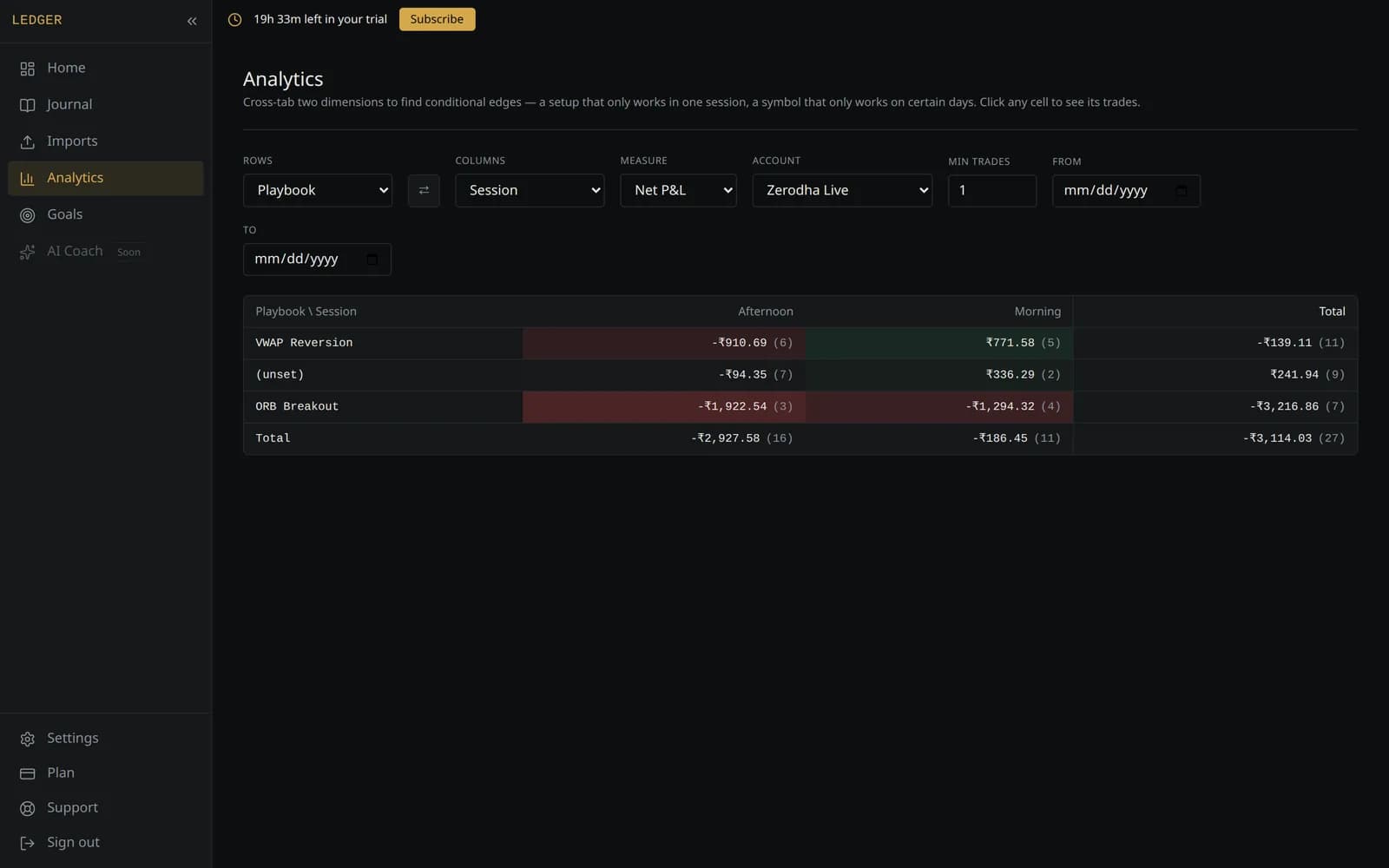
The import gives you prices and dates. It cannot tell you why you took the trade, and that's the half that changes behaviour. Working through the Needs review tab and tagging each trade with the setup, the mistake if there was one, and how you felt is what later lets you ask which session, which setup, or which state of mind is costing you money.
Common problems
- ·Nothing detected you probably exported the P&L statement rather than the tradebook. Re-export from Reports → Tradebook.
- ·Equity and F&O missing from each other Console exports them separately. Download both and import each in turn.
- ·Fewer trades than expected fills that have no matching opposite side stay open rather than being invented. That's usually a position you haven't closed yet.
- ·An unrecognised file you can map the columns by hand once and save the mapping, so the next file is a single click.