Tradovate
How to export Tradovate trades and import them into a journal
Updated 31 July 2026
Tradovate can give you two quite different files, and picking the wrong one is the usual reason an import looks empty or wrong. Both work they just describe your trading at different levels.
Which export do you want?
- ·Performance → Trades gives already-matched round trips: one row per completed trade, with an open price and a close price. Simplest, and what most people want.
- ·Orders or Executions gives raw fills: one row per execution, including orders that never filled. Use this when you scale in and out and want that reconstructed faithfully.
You do not need to tell us which you exported. Both formats are recognised on sight, and the raw-fill file is reconstructed into round-trip trades automatically.
Exporting
- 1.Open Tradovate and go to the Reports or Performance section.
- 2.Choose Trades for matched round trips, or Orders for execution-level detail.
- 3.Set the date range you want.
- 4.Export or download as CSV.
What gets filtered out
Both exports contain rows that are not completed trades, and those are skipped rather than imported as broken records.
- ·In a Trades export, only rows marked Closed are imported. A position still open has no close price, so it is skipped and picked up next time you export.
- ·In an Orders export, only filled executions count. Cancelled and rejected orders are dropped they never moved any size.
- ·Voided trades are ignored in both.
This is why your trade count will usually be lower than your row count, and that is correct rather than a loss.
Scaling in and out
If you add to a position and exit in pieces, an Orders export has several fills that belong to one idea. Those are matched first-in-first-out and split across trades so the sizes reconcile a partially-filled leg is divided across the trades it actually belongs to rather than being attached whole to the first one.
Import it
- 1.Open Journal and select the account keep evaluation accounts separate from funded ones so the statistics stay honest.
- 2.Click Import CSV and choose the file.
- 3.Check the preview: it names the format and shows how many trades will be created, how many rows failed, and how many were duplicates.
- 4.Confirm.
If you are on an evaluation
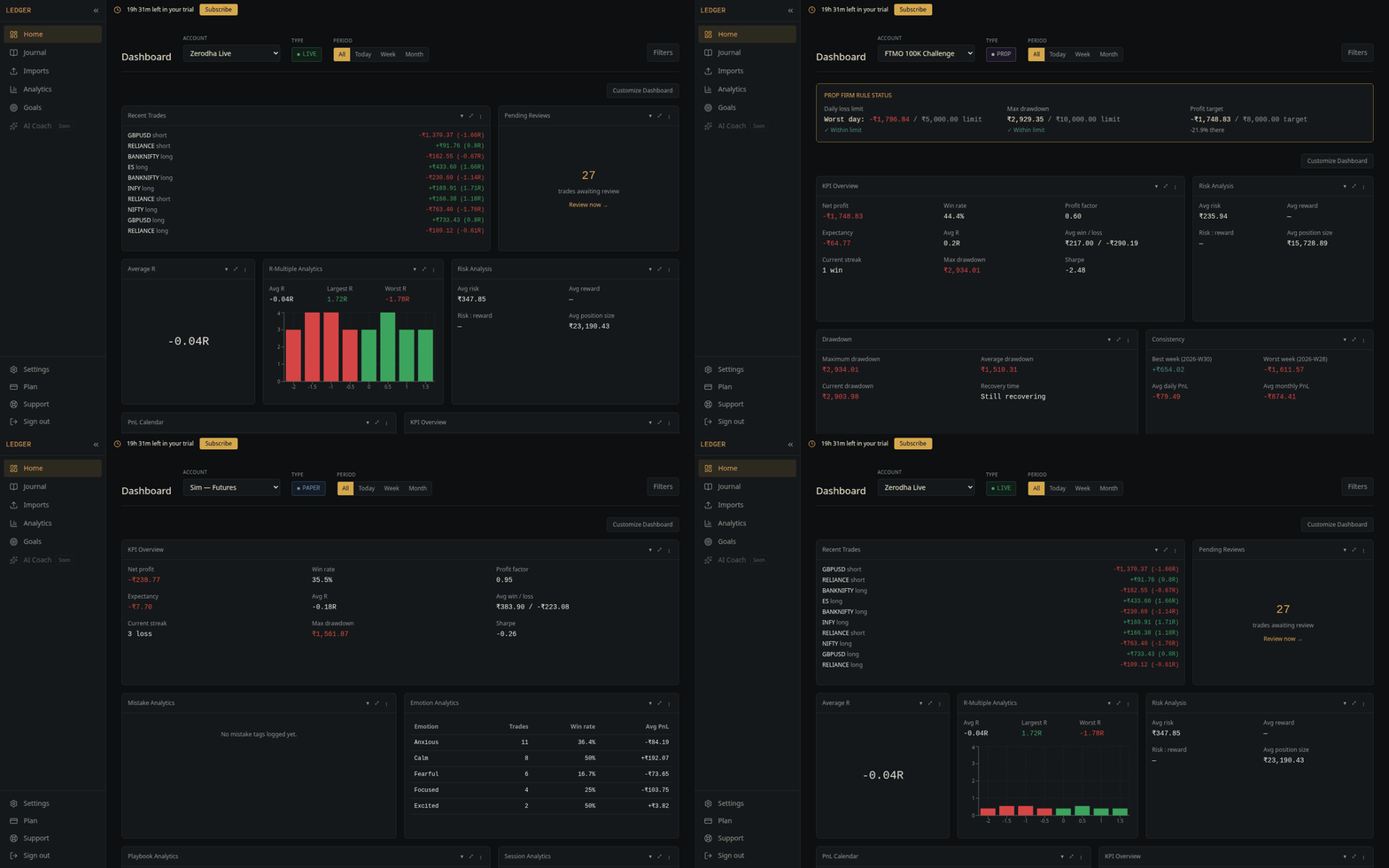
Set the account type to Prop and enter your firm's rules daily loss limit, maximum drawdown, profit target, minimum trading days, consistency percentage. The dashboard then tracks you against them as you import, instead of you working it out in a spreadsheet after the fact.